
After you make a purchase through the Vuplex Store, you can download a receipt invoice for the order and optionally add your company's details (like company name, address, and VAT number) using the following steps:
- Log in to your Vuplex developer dashboard.
- Click the "View invoices" link at the bottom of your dashboard. This option is only available to the user who is the admin of their account (i.e. the user who created the account and made the purchase).
- The invoices page displays a list of the invoices to view. Click on an invoice from the list to view it.
- On the invoice page, click "Add company info" to add any additional details for your company that you wish to add to the invoice. For example, you can add your company's name, address, and tax ID number.
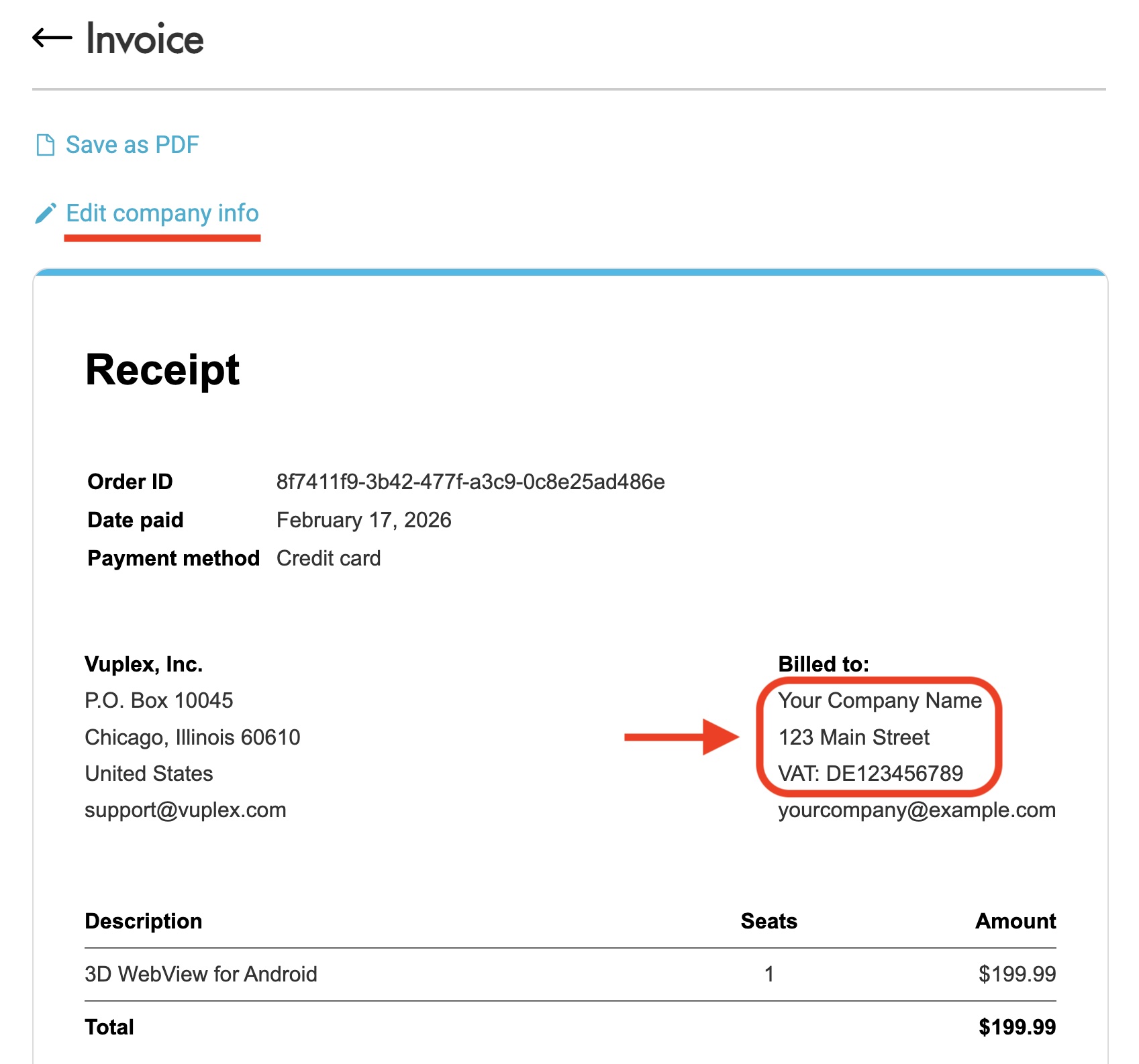
- Click the "Save as PDF" link to download the invoice as a PDF file.